
 James Read
914b39f3f5
Update README.md
James Read
914b39f3f5
Update README.md
|
5 år sedan | |
|---|---|---|
| .github | 5 år sedan | |
| cmd | 5 år sedan | |
| internal | 5 år sedan | |
| media | 5 år sedan | |
| webui | 5 år sedan | |
| .gitignore | 5 år sedan | |
| CONTRIBUTING.adoc | 5 år sedan | |
| Dockerfile | 5 år sedan | |
| LICENSE | 5 år sedan | |
| Makefile | 5 år sedan | |
| OliveTin.proto | 5 år sedan | |
| OliveTin.service | 5 år sedan | |
| README.md | 5 år sedan | |
| SECURITY.md | 5 år sedan | |
| go.mod | 5 år sedan |
README.md
OliveTin
OliveTin is a web interface for running Linux shell commands.
Some example use cases;
- Give controlled access to run shell commands to less technical folks who cannot be trushed with SSH. I use this so my family can
podman restart plexwithout asking me, and without giving them shell access! - Great for home automation tablets stuck on walls around your house - I use this to turn Hue lights on and off for example.
- Sometimes SSH access isn't possible to a server, or you are feeling too lazy to type a long command you run regulary! I use this to send Wake on Lan commands to servers around my house.
YouTube video demo (6 mins)
Features
- Responsive, touch-friendly UI - great for tablets and mobile
- Dark mode - for those of you that roll that way.
- Accessible - passes all the accessibility checks in Firefox, and issues with accessibility are taken seriously.
- Container - available for quickly testing and getting it up and running, great for the selfhosted community.
- Integrate with anything - OliveTin just runs Linux shell commands, so theoretially you could integrate with a bunch of stuff just by using curl, ping, etc. However, writing your own shell scripts is a great way to extend OliveTin.
- Lightweight on resources - uses only a few MB of RAM and barely any CPU. Written in Go, with a web interface written as a modern, responsive, Single Page App that uses the REST/gRPC API.
- Good amount of unit tests and style checks - helps potential contributors be consistent, and helps with maintainability.
Screenshots
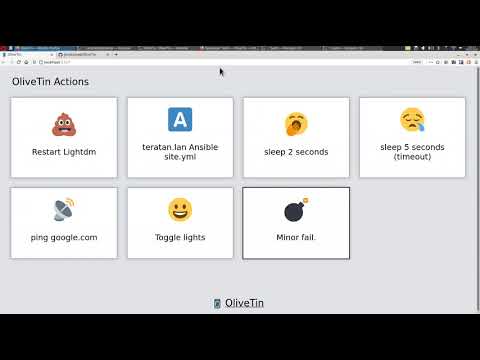
Desktop web browser;

Desktop web browser (dark mode);

Mobile screen size (responsive layout);

Example config.yaml
Put this config.yaml in /etc/OliveTin/ if you're running a standard service, or mount it at /config if running in a container.
listenAddressWebUI: 0.0.0.0:1337 # Listen on all addresses available, port 1337
logLevel: "INFO"
actions:
- title: Restart Plex
  icon: smile
  shell: docker restart plex

  # This will send 1 ping
- title: Ping Google.com
  shell: ping google.com -c 1

  # Restart lightdm on host "overseer"
- title: restart lightdm
  icon: poop
  shell: ssh root@overseer 'service lightdm restart'
Ports
By default OliveTin will use the following ports;
1337- for hosting the web interface1338- for the REST API (the api the web interface uses to do stuff)1339- a modern gRPC API (OliveTin uses protobuf under the hood)
Some people might not want the gRPC API public - simply set listenAddressGrpcActions: 127.0.0.1:1339 in your config so it doesn't listen publicly. It cannot be disabled completely - it's required for the REST API to work.
Installation - systemd service (recommended)
Running OliveTin as a systemd service on a Linux machine is a bit more effort than running as a container - but it means it can use any program installed on your machine (you don't have to add programs to a container).
- Copy the
OliveTinbinary to/usr/sbin/OliveTin - Copy the
webuidirectory contents to/var/www/olivetin/(eg,/var/www/olivetin/index.html) - Copy the
OliveTin.servicefile to/etc/systemd/system/ - Create a
config.yamlusing the example provided above to get you started.
Run systemctl restart OliveTin and check systemctl status OliveTin.
Installation - as a container
Of course, running a container image is very straightforward - but you might need to add files and programs to the OliveTin container to make it useful for your use case. Generally running a systemd service is better for OliveTin.
Running - podman (or docker)
There is a container image that is periodically updated here; https://hub.docker.com/repository/docker/jamesread/olivetin
root@host: podman create --name olivetin -p 1337 -p 1338 -p 1339 -v /etc/olivetin/:/config:ro docker.io/jamesread/olivetin
Building - buildah (or docker build)
root@host: buildah bud -t olivetin